
One second you’re settling in for a movie, and the next your phone is drowning in download tabs, fake virus warnings, and buttons screaming “Your device is infected!” That’s when stop streaming popups becomes less of a nice-to-have and more of a five-minute browser rescue mission. The good news is that most cases can be fixed without installing some mysterious “security cleaner.”

1. Stop Streaming Popups by Cutting Off Malicious Redirects at the Browser Level
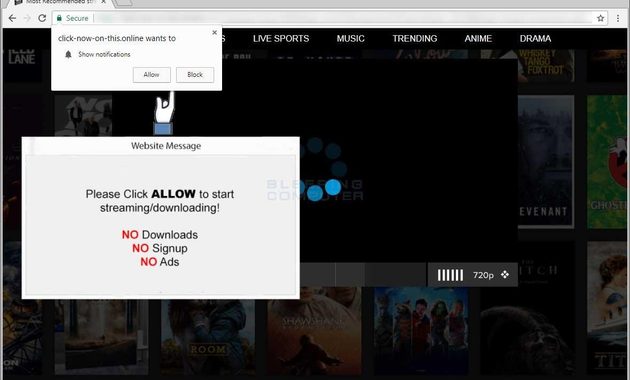
Not every pop-up means your computer has a virus. Sometimes you’ve simply landed on an aggressive advertising network. Other times, you’ve accidentally granted a website permission to send notifications.
Google says persistent pop-ups, unwanted tabs, browser redirects, and fake infection warnings can also indicate unwanted software or malware.
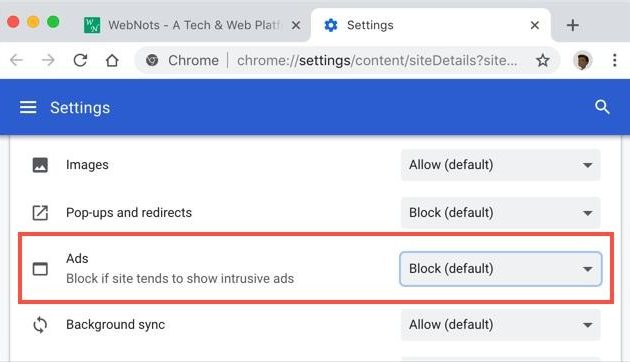
Chrome Pop-Up Settings Come First
On desktop Chrome, go to:
Settings → Privacy and security → Site settings → Pop-ups and redirects
Make sure suspicious sites aren’t sitting in the allowed list. Chrome blocks pop-ups by default, but individual websites can receive exceptions.
Don’t Confuse Pop-Ups With Browser Notifications
This catches people all the time.
You can block pop-ups perfectly and still receive annoying alerts because you previously clicked Allow notifications on a website.
Go to:
Settings → Privacy and security → Site settings → Notifications
Remove websites you don’t recognize. Google specifically recommends blocking unwanted site notifications when disabling pop-ups alone doesn’t solve the problem.
Malicious Redirects Need a Different Fix
If clicking a normal-looking play button suddenly sends you through three or four unrelated websites, don’t keep fighting the tabs.
Close them.
Don’t press Allow, Download, Update, or Remove Virus.
Microsoft also notes that malicious pop-ups can imitate warnings, prizes, or free downloads to trick users into interacting with them.
What If Pop-Ups Keep Coming Back?
That’s when you should investigate the browser itself.
Check:
- unfamiliar extensions
- recently installed applications
- changed search engines
- strange homepage settings
- repeated redirects
- browser notifications you don’t remember approving
If the problem continues, run a reputable malware scan. Google lists recurring pop-ups, browser hijacking, unwanted extensions and fake virus alerts among signs that unwanted software may be installed.
2. Browser Ad Blockers Make Popup Extermination Much Easier

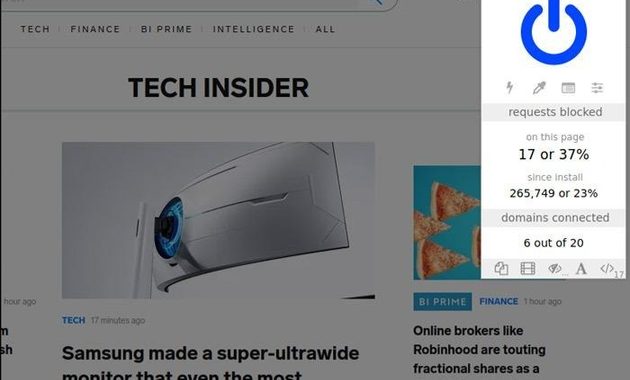
Browser settings are your first line of defense. A good content blocker adds another layer by filtering advertising and tracking requests before they become visual clutter.
Choose a Reputable Browser Ad Blocker
Don’t search for a random extension promising “100% virus removal.” That’s basically replacing one headache with another.
Look for:
- A well-known developer.
- A strong update history.
- Clear permissions.
- Transparent privacy information.
- An official browser extension listing.
AdGuard, for example, offers browser extensions and dedicated apps designed to block ads, pop-ups and trackers.
One Blocker Is Usually Better Than Five
Installing multiple blockers sounds powerful, but overlapping extensions can create conflicts.
A cleaner setup is usually:
Browser protection + one trusted content blocker + updated browser
That’s enough for most everyday streaming situations.
If you’re interested in the difference between aggressive advertising and safer advertising environments, this comparison of free live stream popups vs safe ads is a useful next read.
Why Some Streaming Sites Fight Your Ad Blocker
Some websites detect content blockers and deliberately show messages telling you to disable protection.
That’s not automatically a scam, but it’s a moment to slow down.
Malwarebytes documented cases where ad-recovery systems deliberately make pages appear broken and then pressure visitors to disable their protection.
If a site says:
“Disable your blocker to continue.”
you don’t have to obey it.
Opera Has Built-In Protection Too
You don’t necessarily need an extension.
Opera includes an integrated ad blocker designed to block advertising and trackers without requiring an additional browser extension.
That can be convenient if you want a simpler setup, especially on devices where you don’t want a pile of extensions running in the background.
3. Fix Ad Injection Before It Turns Into a Full Browser Cleanup
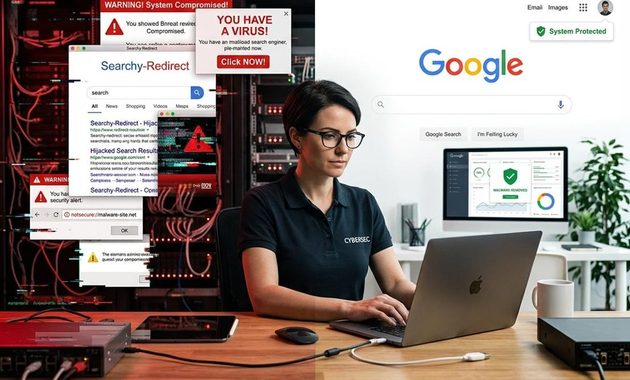
Sometimes the problem isn’t the streaming website anymore. Your own browser or device may have picked up something unwanted.
An Ad Injection Fix Starts With Extensions
Open your browser’s extension manager and remove anything you don’t recognize.
Don’t simply disable suspicious extensions forever. If you know you didn’t install them, remove them.
Then restart the browser.
Clear Suspicious Site Permissions
Go through notification permissions and pop-up exceptions. Delete sites that you don’t recognize.
This is particularly important if the annoying messages appear even when you’re not visiting streaming websites.
Don’t Click Fake Virus Warnings
A web page saying “Windows is infected” doesn’t mean Windows actually detected anything.
Real security software doesn’t normally require you to click a random webpage button to “activate” an emergency cleanup.
Malwarebytes explains that fake browser-locking advertisements can imitate technical support warnings and attempt to push users toward fraudulent actions.
Reset the Browser If Nothing Else Works
If the browser keeps redirecting you despite removing extensions and permissions, a reset can be the cleanest option.
Chrome provides a built-in reset option that returns important browser settings to their defaults.
Before doing that, make sure you know which extensions and settings you actually want to keep.


Thiago Valença has worked with community media projects, public cultural institutions, and digital content partnerships. He has helped audiences find free broadcasts of lectures, local festivals, public meetings, educational programs, and independent performances. His articles focus on legitimate free livestreams, open-access content, ad-supported services, and the warning signs of unsafe or misleading streaming websites.